Here you can download Turbo C++ version 3.2 which works for windows 7, 8, 8.1 and 10. The best part is it works in full screen mode even with 32 bit or 64 bits. Follow the steps below to download it and do the necessary set up.
Steps to download Turbo C++ for Windows:
Download Link: Turbo.C.3.2.zip
- Download Turbo C++ zip file from the link above.
- Extract the downloaded zip file using win zip/7z or any other utility.
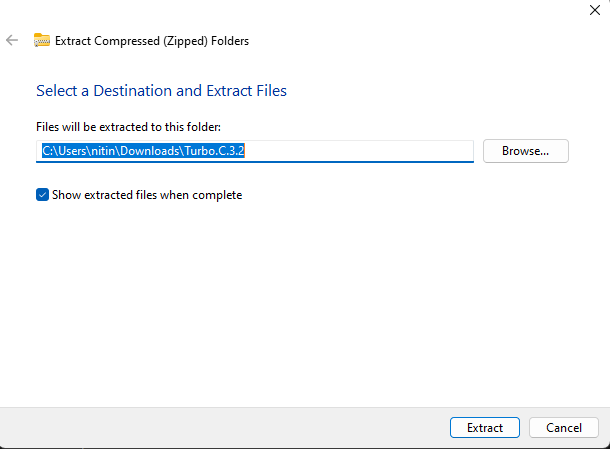
- Execute the Turbo C++ 3.2.exe or .msi file from extracted folder.
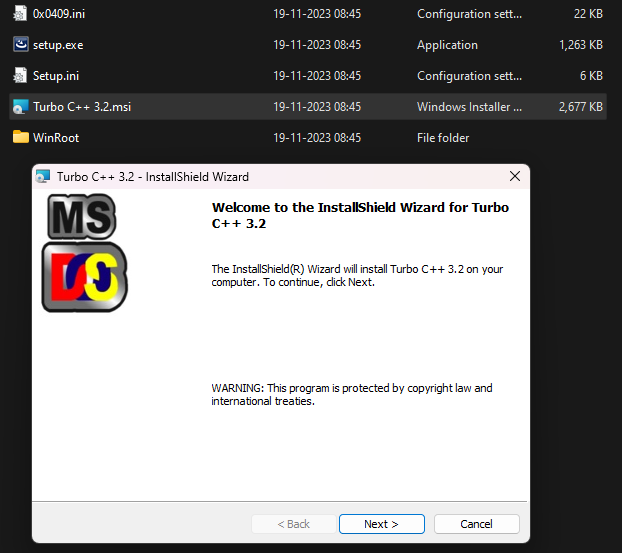
- Follow the on-screen steps and it will be installed into the default location (program files).
- The auto launch option at the end will start the Turbo C++ instantly, if you need to start it again just double click the Turbo C icon on your desktop and you should be all set.
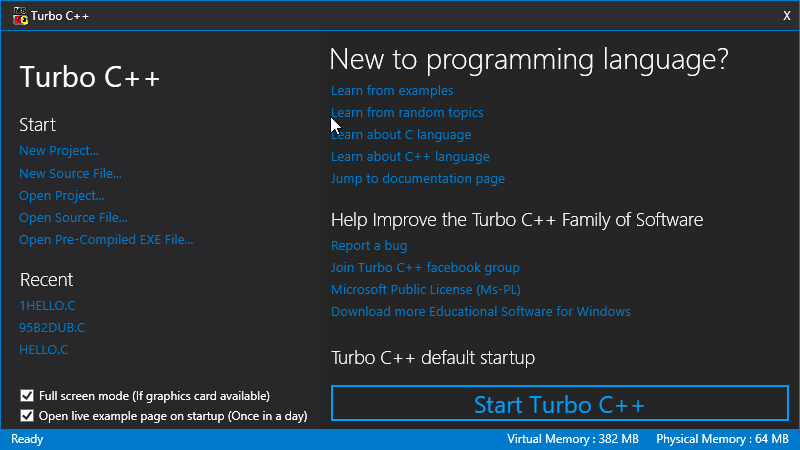
- Click the Start Turbo C++ button on the below screen and you are good to go.
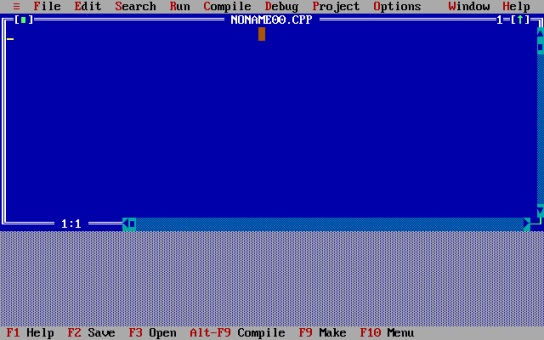
Let me know in comments if you face any issue while installing the Turbo C++ for windows 11 or 10. We have tested this application on each version of windows, and it works absolutely fine even with the latest windows 11.
Will it work in Full Screen Mode?
Absolutely yes. The problem with other/old Turbo C++ programs is on Windows Vista+ is that they do not run in full screen mode, but this will work just perfect in full screen mode.
Now you can use Turbo C++ in full screen mode on your windows OS 7, 8 or 10 and now 11. Now simply click on Start Turbo C++ to start in full screen mode, if you do not want full screen mode (window mode) then uncheck the Full Screen mode in left bottom. This is one of the most reliable alternatives to manually attempting to solve Turbo C++ incompatibility issues with Windows Vista, 7 ,8, 10 and now 11 as well. The solution relies on the DOSBox and includes a couple of code adjustments to manage the successful launch and proper functioning of the program.
What is Turbo C/C++?
Turbo C/C++ for Windows is a modified version of the Borland Turbo C++ that can be run on newer versions of Windows, such as Vista, 7, 8, 10 and now 11 a well. The application sports all the features of the old IDE, eliminating all the incompatibility issues that are encountered in a normal Turbo C++ installation on modern Windows editions.
It bundles all the features of the old IDE; it includes a compiler, a debugger, the DOS shell, breakpoints, code inspection, watches, tracing, to name the most important ones. The program also incorporates a few project samples and runs in full screen mode only.
Turbo C++ Shortcuts:
| S.NO. | SHORTCUTS KEYS | ACTION |
|---|---|---|
| 1 | F1 | For Help |
| 2. | F2 | Save |
| 3. | F3 | Open |
| 4. | F4 | Go to cursor |
| 5. | F5 | Zoom |
| 6. | F6 | Next |
| 7. | F7 | Trace into |
| 8. | F8 | Step over |
| 9. | F9 | Make |
| 10. | F10 | Menu |
| 11. | Alt+X | Quit |
| 12. | Alt+Bksp | Undo |
| 13. | Shift+Alt+Bksp | Redo |
| 14. | Shift+Del | Cut |
| 15. | Ctrl+Ins | Copy |
| 16. | Shift+Ins | Paste |
| 17. | Ctrl+Del | Clear |
| 18. | Ctrl+L | Search again |
| 19. | Alt+F7 | Previous error |
| 20. | Alt+F8 | Next error |
| 21. | Ctrl+F9 ‘or’ Alt+R+Enter | Run |
| 22. | Ctrl+F2 | Program reset |
| 23. | Alt+F9 | Compile |
| 24. | Alt+F4 | Inspect |
| 25. | Ctrl+F4 | Evaluate/Modify |
| 26. | Ctrl+F3 | Call stack |
| 27. | Ctrl+F8 | Toggle breakpoint |
| 28. | Ctrl+F5 | Size/Move |
| 29. | Alt+F3 | Close |
| 30. | Alt+F5 | User screen |
| 31. | Alt+0 | List all |
| 32. | Shift+F1 | Index |
| 33. | Ctrl+F1 | Topic search |
| 34. | Alt+F1 | Previous topic |
| 35. | Ctrl+F7 | Add watch |
| 36. | Alt+Enter | Toggle screen mode(Full Screen / Window)* |
In case you face any problem while downloading Turbo C for windows please comment below.
Turbo C++
download Turbo C++ 3.2 below which works for windows 7, 8, 8.1 and 10, it works in full screen and works with 32 and 64 bit windows.
Price Currency: USD
Operating System: Windows
Application Category: Compiler
4.9